Before you download, take a quick look at what to expect during installation. Windows will show one warning — totally normal for new apps. Here's how it'll go.
Three short steps. We show you the screens before they appear, so you know exactly what to do.
Before publishing each release, we upload it to VirusTotal — an independent service that scans the file with every major antivirus. Zero engines flag Lynvizo Play. You can verify this yourself anytime — the report stays public.
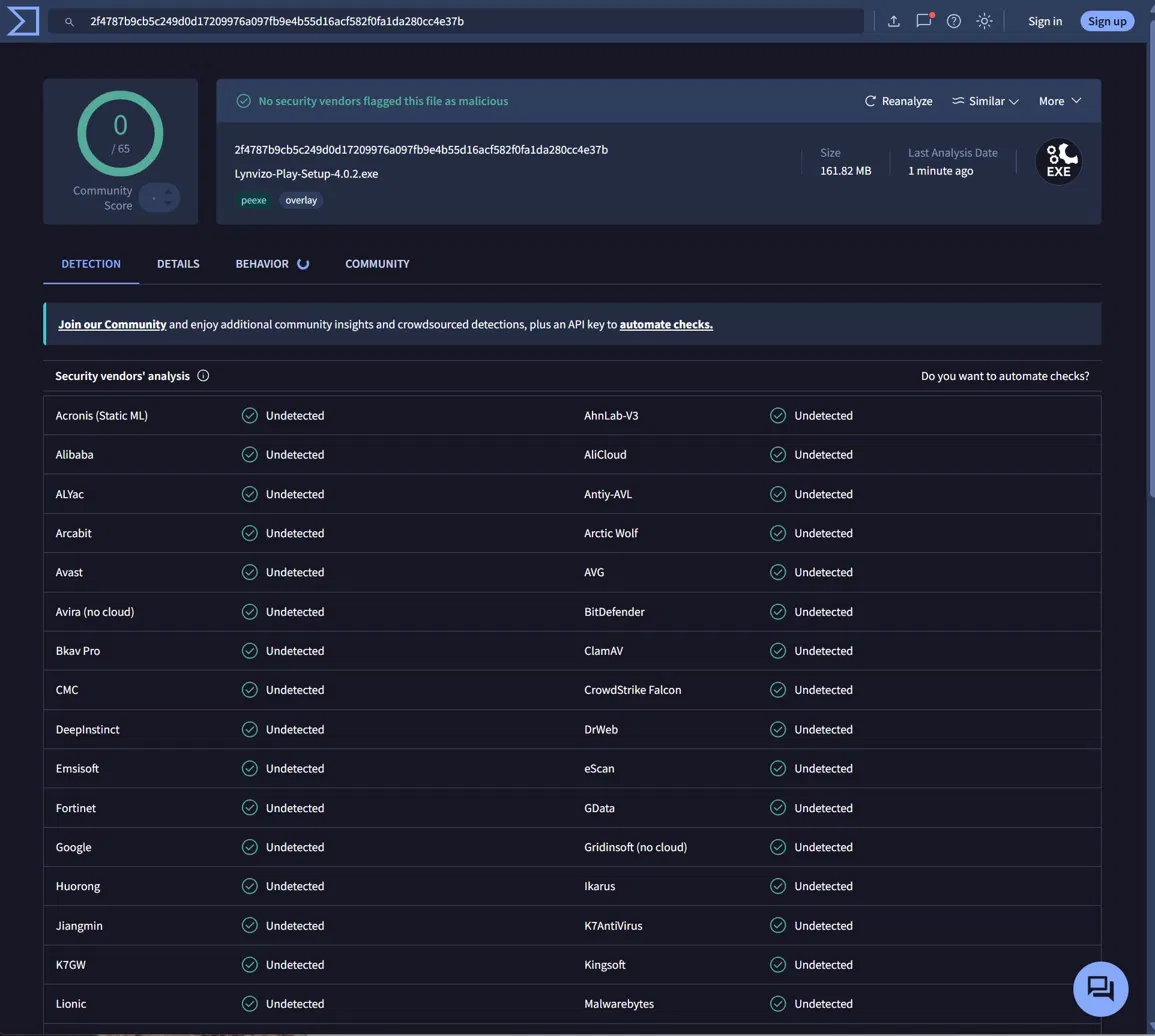
→ Verify yourself on VirusTotal
When you run the installer, Windows SmartScreen shows a blue screen saying "Windows protected your PC". This appears for any new app Microsoft hasn't seen on millions of computers yet. It does not mean the file is unsafe.
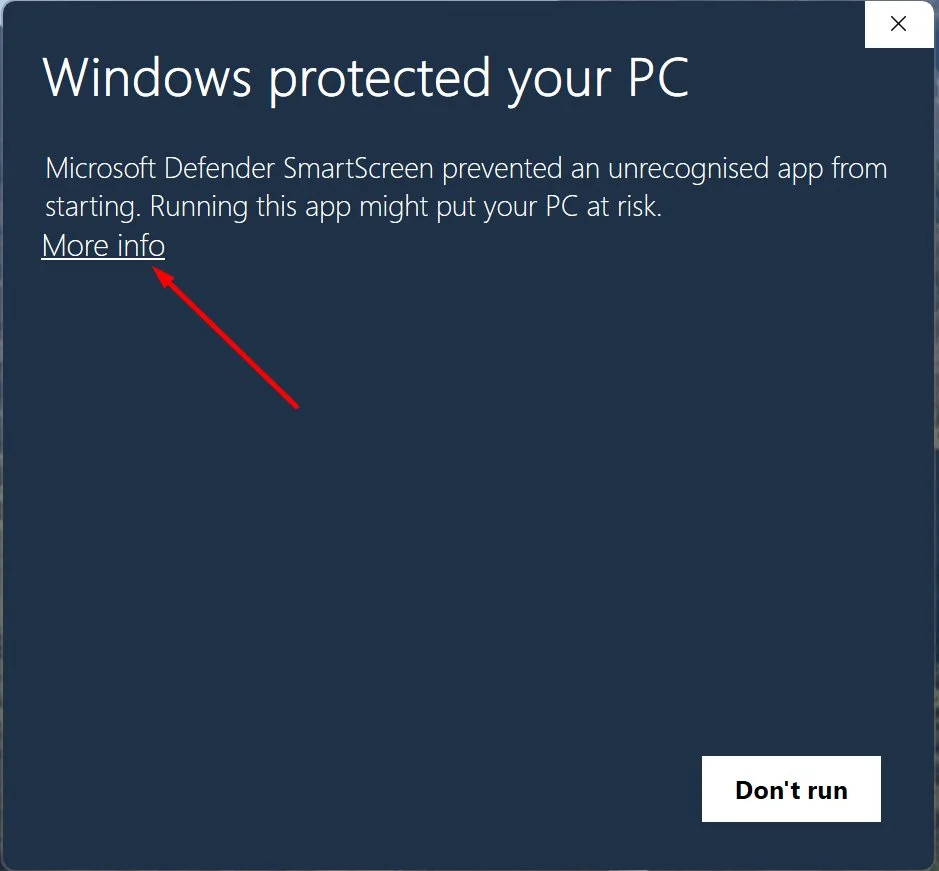
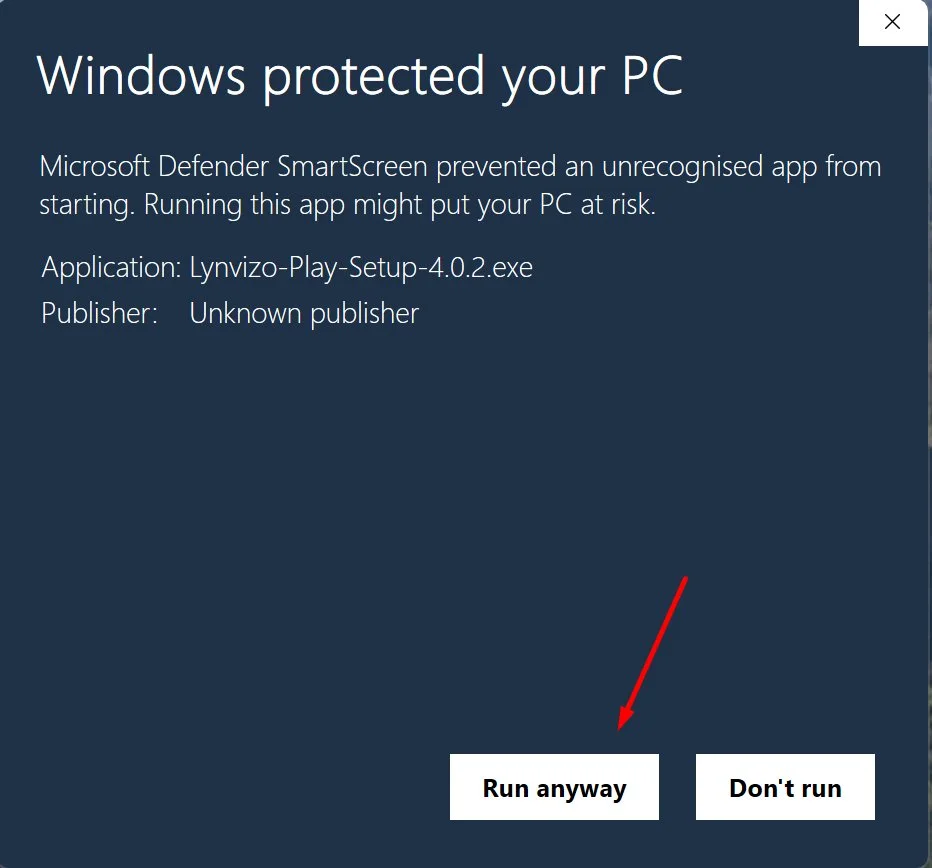
Why? Big software companies pay for a "code-signing certificate" that makes Windows trust them immediately. We're a small team and getting one as an individual developer in the UK is currently impractical. We're working on it. Until then, this is the normal experience for any independent Windows app.
After clicking Run anyway, the standard Windows installer runs. Click Next → Install → Finish and Lynvizo Play opens with a full 14-day free trial — no card, no signup, all features unlocked. Load your M3U playlist or Xtream Codes and start watching.
You know what to expect now. Click below to get the installer.
Download Lynvizo Play